Appearance
The Parts Centre
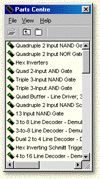
The Parts Centre offers a convenient way of embedding new components into your circuit. Digital Works refers to these type of components as 'macros'. Simply select the required macro from the Parts Centre window, hold the mouse button down and then drag the part into the main circuit workspace. Finally, release the mouse button to embed the selected macro into your circuit. You can then start wiring up the macro like you would any other Digital Works object.
If a datasheet has been assigned to a macro, a message box will appear pointing to the object when the mouse button is released. Press F1 or right click the mouse and select View Datasheet… to access the datasheet.
Toolbar Options


Edit Macro
Opens the selected macro for editing in the main Digital Works workspace. This allows you to modify the macro's implementation circuit.
Up One Level
Navigates up one level in the Parts Centre folder hierarchy.
Parts Centre Root
Returns to the top-level root folder of the Parts Centre.
Display Options
Digital Works can represent macros in the Parts Centre in two different ways. The first uses the View → Macro Name menu bar option and will display the macro by a name previously assigned to it. The second way uses the View → Filename menu bar option and will display the macro using its actual physical filename.
For example, a macro might be saved to disk using the name 74HC00. However, you may want to give a more descriptive name to this part such as 'Quadruple 2 input NAND gates'. If a macro name has not been assigned, the Parts Centre will display its filename, even if the View → Macro Name option is selected.