Appearance
Switch

Placing the Device
To place a switch object into a circuit workspace, select the switch icon and move the mouse into the active view. Press the left mouse button to fix the object at the required location.
Switch Type
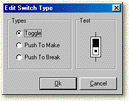
You can change the switch type from its default setting of toggle to push to make or push to break by selecting the device with the object selector tool and right clicking the mouse, then selecting the Set Switch Type... option. This will invoke the Edit Switch window, as shown below.
Note
The object interaction tool is used to toggle the state of a switch. You can't open or close a switch with the normal object selector tool because this is used to select an object only.
Toggle
Position the finger of the hand tool on the switch. Each mouse click will then toggle the state of the switch between the on (activate) and off (deactivate) states.
Push to Make
Position the finger of the hand tool on the switch. Click and hold the mouse button for the duration required. Release the mouse click to break the connection.
Push to Break
Position the finger of the hand tool on the switch. Click and hold the mouse button for the duration required. Release the mouse click to activate the connection.