Appearance
 Annotation
Annotation can be added to the circuit workspace by selecting the annotation icon and moving the mouse into the active view. Pressing the left mouse button at the desired location will automatically invoke the Edit Annotation Dialog Box. From here, you can change the font style, add an overbar or change the color.
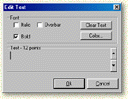
Use the clear text button to remove previously inserted text. The font size can be changed by clicking on the up and down arrows next to the insert text box.
To rotate the annotation object, click on the text with the object selector tool and then rotate by clicking and dragging the plus sign to the required position.