Appearance
The Template Editor
The Template Editor is central to the creation of macros. It provides all of the functionality required to design a black box or interface representation of a circuit implementation. In addition, it provides a means of interfacing with a circuit's macro tags through the use of template pins.
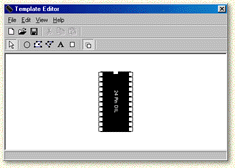
The Template Editor can be invoked in one of two ways:
From the main Digital Works window, select the menu option Tools → Template Editor. This will open the main Template Editor window. Starting the editor in this way allows you to design interface views and save them to disk. However, no pin associations can be made when started in this way.
Place a macro tag object from the Digital Works main toolbar and select the object using the object selector tool. Next, right click with the mouse and select the pop up Template Editor option. When started in this way, the editor will provide a mechanism for associating implementation macro tags to interface template pins.
The Toolbar
New Template
 Creates a new blank template, clearing any existing design.
Open Template
 Opens a previously saved template file from disk.
Save Template
 Saves the current template design to disk.
Circle
 Draws a circle shape on the template canvas. Use circles for component outlines or decorative elements.
Polyline
 Draws a polyline (connected line segments) on the template canvas. Useful for creating open shapes and line-based graphics.
Polygon
 Draws a filled polygon on the template canvas. Use polygons for creating closed shapes like gate symbols.
Annotation
 Places a text annotation on the template. Use annotations to label your macro interface.
Template Pin
 Places a template pin on the interface view. Template pins define the connection points where wires can be attached to the macro when it is embedded in a circuit. Each template pin must be associated with a macro tag in the implementation view.
Display Pins
 Toggles the visibility of template pins when the macro is embedded in a circuit. When the button is in the up position, pins will be hidden. When in the down position, pins will be visible. For gate-style macros, hide the pins for a cleaner appearance. For IC-style macros, leave pins visible.